
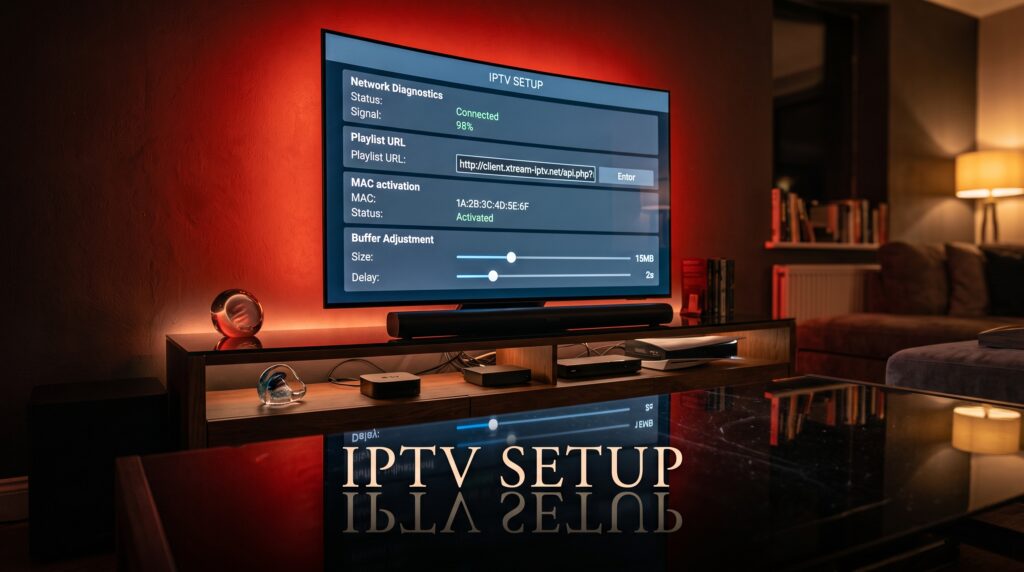
An IPTV setup is the step-by-step process of configuring an Internet Protocol Television service on a compatible hardware device using dedicated media player software, an M3U playlist URL, or Xtream Codes API login credentials to stream live television, sports, and on-demand entertainment over the internet.
Cutting the cord has revolutionized modern home entertainment across the United States. However, getting started can feel overwhelming if you do not know the right steps. Completing a clean iptv setup ensures you bypass common technical roadblocks like continuous buffering, broken Electronic Program Guide (EPG) schedules, and audio-video sync errors. By following a structured iptv setup, viewers gain seamless access to thousands of live global channels, premium sports networks, and expansive on-demand libraries directly on their preferred screens.
Whether you rely on an Amazon Fire TV Stick, an Android box, a Smart TV, or an Apple device, configuring your system correctly from day one makes all the difference. In this technical walkthrough, we break down every phase of your iptv setup journey so you can enjoy reliable, high-definition streaming without technical frustration.
Before beginning your digital installation, you need the right hardware foundation. A successful iptv setup relies heavily on your streaming equipment, your internet gateway, and your media player software.
       +--------------------------------------------------+
       |           Core IPTV Setup Prerequisites          |
       +--------------------------------------------------+
                                 |
       [ High-Speed Internet: 30+ Mbps Fiber / Cable ]
                                 |
       [ Capable Streaming Device: Firestick, Apple TV, Shield ]
                                 |
       [ Dedicated IPTV Player: TiviMate, Smarters, XCIPTV ]
                                 |
       [ Active Account Credentials: M3U URL / Xtream API ]
A High-Performance Streaming Device: Amazon Firestick 4K Max, Nvidia Shield TV Pro, Apple TV 4K, Chromecast with Google TV, or a modern Smart TV running Android OS.
Stable Broadband Internet: A minimum download speed of 30 Mbps for high definition (1080p) and 50+ Mbps for uninterrupted 4K Ultra HD streaming.
Ethernet Adapter (Recommended): Hardwiring your streaming box straight to your router eliminates Wi-Fi jitter and packet loss during live sports broadcasts.
HDMI 2.0+ Compatible Display: A television supporting standard HDCP digital handshake protocols to prevent blank-screen rendering errors.
To complete your installation, your IPTV provider must send you account access details. These usually arrive in one of two formats:
Xtream Codes API: Includes a base Server URL, a unique Username, and a secure Password. This format is the easiest to input on handheld remotes.
M3U / M3U8 Playlist Link: A direct web link containing the server location alongside your account token, often paired with an XMLTV EPG URL.
If you want to verify your device responsiveness before committing to a paid plan, start with a quick test run using the 67IPTV 24-hour trial to secure your server connection credentials.
The Amazon Firestick is the most popular streaming client in North America due to its budget-friendly price point, responsive performance, and flexible Android foundation. Follow these exact steps for a flawless Firestick iptv setup.
       +------------------------------------------------+
       |       Fire TV Sideloading Architecture         |
       +------------------------------------------------+
       [ Appstore ] ---> Download "Downloader" App
                               |
                               v
       [ Device Settings ] ---> Enable Developer Options
                               |
                               v
       [ Downloader ] ---> Install IPTV Smarters / TiviMate
                               |
                               v
       [ IPTV App ] ---> Input Xtream Codes API ---> Live TV
Because dedicated IPTV players are specialized tools, you will often install them using Amazon’s official Downloader tool.
Navigate to the Find tab on your Firestick home dashboard and click Search.
Type Downloader, select the orange icon, and click Download / Get.
Return to your Firestick Settings (the gear icon on the far right).
Select My Fire TV > Developer Options.
(Note: If Developer Options is hidden, go to About, highlight your device name, and click the center remote button 7 times until you unlock developer mode).
Click Install Unknown Apps, find Downloader, and toggle the switch to ON.
Launch the Downloader application from your app library and grant storage permissions.
Click into the central URL text box.
Enter the official numeric shortcode or download address for your preferred player, such as IPTV Smarters Pro or TiviMate.
Once downloaded, click Install, and delete the temporary installation file to preserve internal storage.
Launch your installed player and choose Login with Xtream Codes API.
Enter any descriptive profile label in the first box (e.g., My Home TV).
Carefully enter your Username, Password, and Server URL exactly as issued by your provider.
Select Add User or Login, and let the app download live channels, movies, series, and the EPG database.
Android TV boxes (like the Nvidia Shield, Formuler Z-series, and Mecool devices) and Google TV systems provide a native environment for your iptv setup without complex workarounds.
       +-----------------------------------------------+
       |         Native Android TV Onboarding          |
       +-----------------------------------------------+
       [ Google Play Store ] ---> Search "TiviMate" / "Sparkle"
                                        |
                                        v
       [ App Installation ] ---> Direct Automated Install
                                        |
                                        v
       [ Add Playlist ] ---> Select "Xtream Codes API"
                                        |
                                        v
       [ Enter Server URL + Logins ] ---> Synchronize EPG
Open the official Google Play Store directly from your Android TV home screen.
Search for TiviMate IPTV Player or XCIPTV Player.
Click Install to deploy the application straight to your device.
Launch the application and select Add Playlist.
Choose Xtream Codes login type, which ensures faster metadata synchronization than standard M3U lists.
Input your provider server details and select Next.
Check the box to Include VOD if you want on-demand movies alongside live channels.
Assign your EPG source link and click Done to open your live grid guide.
For detailed hardware benchmarks and performance evaluations of top Android streaming boxes, consult the technical guides at Android Central to find the best box for your home theater.
Apple devices run on the tvOS and iOS ecosystems, which require media applications approved through the Apple App Store. An Apple iptv setup requires dedicated players built specifically for Apple’s AVPlayer rendering engine.
| Preferred Player | Platform | Connection Protocol | Standout Feature |
| Smarters Player Lite | tvOS / iOS | Xtream Codes & M3U | Familiar, easy-to-use menu |
| iPlayTV | tvOS | M3U / XMLTV / Xtream | Slick, Apple-native user interface |
| GSE Smart IPTV | iOS / iPadOS | M3U & Local Storage | Advanced audio codec decoding |
| UHF Player | tvOS / iOS | Cloud Sync / Xtream | Modern, multi-profile interface |
Open the App Store on your Apple TV 4K or iPhone.
Search for and install Smarters Player Lite or iPlayTV.
Open the app and accept local network permissions so it can communicate with your media router.
Select the Add New User or Add Playlist icon.
Select Load Your Playlist or File/URL or choose Xtream Codes API.
Paste your M3U playlist link or type in your server credentials.
Click Add User and wait for the app to parse channels and EPG entries.
If you prefer not to purchase an external streaming stick, modern Samsung (Tizen OS) and LG (webOS) televisions allow you to complete your iptv setup directly through their built-in application stores.
       +----------------------------------------------------+
       |          Smart TV MAC Activation Workflow          |
       +----------------------------------------------------+
       [ TV App Store ] ---> Install "IBO Player" or "Smart IPTV"
                                     |
                                     v
       [ App Screen ] ---> Locate Device MAC Address & Device Key
                                     |
                                     v
       [ Web Browser on PC/Phone ] ---> Visit App Activation Portal
                                     |
                                     v
       [ Upload Playlist ] ---> Paste M3U Link ---> Reload TV Screen
Turn on your Samsung or LG Smart TV and open the Samsung App Store or LG Content Store.
Search for IBO Player, Smart IPTV (SIPTV), or Nanomid Player.
Install and open the app on your television.
Write down the MAC Address and Device Key shown on your screen.
Open a web browser on your phone or laptop and go to the application’s upload management portal (e.g., [iboplayer.com/device/login](https://iboplayer.com/device/login)).
Enter your television’s MAC address and Device Key to log in.
Click Add Playlist, name your list, paste your provider’s M3U URL, and click Save.
Restart the application on your Smart TV to access your channel lineup.
If you are looking for an all-in-one entertainment service that works across all these devices, visit the 67IPTV official platform to view compatible playlists and packages.
Streaming your live channels directly on a computer screen is straightforward and requires minimal configuration.
Download and install the free, open-source player from the official VideoLAN (VLC) website.
Launch VLC on your computer.
Click on the top menu bar: Media (Windows) or File (Mac) > Open Network Stream.
Paste your M3U playlist link directly into the URL text field.
Click Play.
Open the Playlist Window (Ctrl + L on Windows, Cmd + Y on Mac) to browse channel categories.
For an experience closer to a traditional cable box with a full EPG grid:
Windows: Download IPTV Smarters Pro for Windows or use the Bluestacks Android emulator to run TiviMate.
Mac: Download IPTV Smarters from the Mac App Store or install Vivid-IPTV.
Log in using your standard Xtream Codes credentials to browse your guide with complete keyboard and mouse navigation.
Even the best software configuration can run into issues if your underlying home network drops data packets. Live video feeds require steady, low-latency streaming without sudden bandwidth dips.
       +-------------------------------------------------------------+
       |                 Troubleshooting Signal Flow                 |
       +-------------------------------------------------------------+
       [ Issue: Constant Buffering ]
                     |
                     +---> Run Speed Test ---> Below 30 Mbps? ---> Reboot Router
                     |
                     +---> Switch to Wired Cat6 Ethernet Cable
                     |
                     +---> Toggle Player Hardware Acceleration (HW / SW)
                     |
                     +---> Enable VPN ---> Bypasses ISP Throttling
Connect Over 5 GHz Wi-Fi: If running an Ethernet cable is not an option, connect your streaming device to your router’s 5 GHz Wi-Fi band instead of the slower, crowded 2.4 GHz frequency.
Set Custom DNS Addresses: Default internet provider DNS servers can slow down connection lookups. Switch your router’s DNS to Google (8.8.8.8 / 8.8.4.4) or Cloudflare (1.1.1.1 / 1.0.0.1) for faster server response times.
Restart Network Gear: Power-cycle your modem and router every couple of weeks to clear out stale connection tables and memory leaks.
Inside your media player settings (such as TiviMate or Smarters), fine-tune playback settings to match your hardware:
Stream Format: Switch your stream preference from .ts (MPEG-TS) to .m3u8 (HLS) if your internet speed fluctuates.
Buffer Size: Change your buffer settings from “None” to “Medium” or “Large” (3 to 5 seconds). This gives your player a safety margin of preloaded video data.
Hardware Decoding: Make sure your decoder engine is set to Hardware (HW). This shifts video processing to your device’s built-in graphics chip instead of overloading the CPU.
Many internet service providers automatically detect and throttle continuous video streams during evening peak hours. To check your actual network throughput, run an independent bandwidth test via Speedtest by Ookla. If your web browsing speeds look fine but your live channels freeze, use a reliable VPN to encrypt your connection so your provider cannot throttle your streaming traffic.
For broader context on digital home networks, bandwidth requirements, and video transmission standards, check out educational guides on the Federal Communications Commission (FCC) site.
       +-----------------------------------------------------------+
       |             Common IPTV Error Codes & Fixes               |
       +-----------------------------------------------------------+
       | Error Code / Issue  | Primary Root Cause | Quick Fix      |
       +---------------------+--------------------+----------------+
       | HTTP 401 / 403      | Expired/Wrong Auth | Check Logins   |
       | HTTP 404 Not Found  | Channel Offline    | Update EPG     |
       | Audio/Video Desync  | Codec Mismatch     | Switch to SW   |
       | App Crash on Launch | Corrupted Cache    | Clear Cache    |
       +-----------------------------------------------------------+
This message means your media player cannot authenticate with the server.
Double-check your credentials for capitalization errors or extra trailing spaces, especially when using an on-screen remote.
Check that your subscription period has not expired.
Make sure you are not using more simultaneous connections than your subscription package allows.
A black screen with normal sound means your media player’s video decoding engine cannot process the incoming stream format.
Open your player’s Playback Settings.
Switch your video decoder from Hardware to Software (SW).
Alternatively, install VLC Player or MX Player on your streaming stick and set your IPTV app to launch streams through an “External Player.”
If your guide shows “No Information” across all channels:
Go into your player’s EPG settings and select Update EPG Now.
Confirm your device’s date, time, and time zone are set accurately in system settings.
Confirm that your provider’s XMLTV URL is spelled correctly in your playlist configuration.
Overloaded playlists containing over 20,000 global channels can bog down low-powered streaming devices like older Firesticks. Managing your playlist structure keeps your software snappy and easy to navigate.
       +---------------------------------------------------------+
       |         Optimized Channel Management Lifecycle          |
       +---------------------------------------------------------+
       [ Raw Provider Playlist (20,000+ Channels & VOD) ]
                                  |
                                  v
       [ In-App Channel Filter / Playlist Editor Tool ]
                                  |
                                  v
       [ Hide Unwanted Foreign Countries & Inactive Folders ]
                                  |
                                  v
       [ Build Lean "Favorites" List: Local, Sports, Movies ]
                                  |
                                  v
       [ Result: Instant Navigation & Zero App Crashes ]
Hide Unused Channel Groups: Go into your application’s playlist settings and hide language packages you never watch. Trimming your active list down speeds up guide loading times.
Build a Curated Favorites Group: Rather than scrolling through thousands of feeds every evening, highlight your everyday local networks, news channels, and sports feeds and add them to your Favorites group.
Clear Temporary App Cache: Every few weeks, go to your streaming device settings, locate your media player app, and click Clear Cache. This removes temporary channel logos and stale data without wiping your account login.
Reviewing pricing packages for flexible plans that include pre-sorted playlists and reliable uptime is easy. Check out all available multi-screen options on the official 67IPTV pricing plans page to find a subscription that matches your household.
A standard installation on an Amazon Firestick, Smart TV, or Android device takes about 5 to 10 minutes. Most of that time is simply spent downloading your media player and typing your server URL and login credentials using your remote control.
Yes, you can install your player software on as many devices as you like. However, the number of devices that can stream at the same time depends on your subscription plan. Streaming on more screens than your plan allows will pause your feeds or generate authentication errors.
No physical antenna, dish, or dedicated wall jack is needed. An internet-delivered television service routes all video and audio data entirely through your broadband connection.
Recurring, predictable freezing usually points to local packet loss or ISP bandwidth throttling. First, restart your router and connect via a wired Ethernet cable. If the freezing continues, turn on a VPN to prevent your internet provider from throttling your stream.
Xtream Codes API is generally easier and more reliable. It breaks your connection down into a simple URL, username, and password, which simplifies typing on a TV remote. It also syncs channel categories and program guide data faster and more reliably than long M3U playlist strings.
Setting up your entertainment system does not have to be complicated. By choosing the right player software, hardwiring your internet connection, and using clear server credentials, an iptv setup transforms any standard television into an all-in-one entertainment hub packed with live sports, breaking news, and on-demand movies.
Take control of your home entertainment today. Skip overpriced cable bills and complicated hardware boxes. Choose your preferred media device, follow the clear steps in this guide, and experience how simple and reliable modern digital television can be.
Ready to see how smooth and reliable your streams can really be? Start today with the 67IPTV 24-hour trial to test your setup, unlock premium channel feeds, and enjoy reliable, high-definition entertainment across all your devices!
67iptv © 2026 all rights reserved
WhatsApp us